
Printing on 10 × 15 cm paper at 100 % scale
The print sheet exists to keep the size of a photo; but printer software and some print services “fit the image to the page”, that is, they enlarge or shrink it. The photo then comes out at a different size. If the source of your document sets a condition on printing (professional printing, not printed at home and so on), the program shows that sentence next to the size; read it first. The steps in this guide are in the free edition; the parts that belong to Pro are marked.
Steps
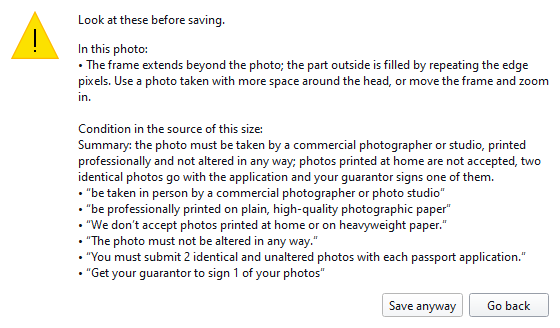
- Save the print sheet. Save print sheet… makes a 10 × 15 cm photo sheet: as many copies of your photo as fit, thin lines to cut along, and a 50 mm scale line at the bottom. If there are warnings they are listed before saving.
- If you print yourself, choose 100 % scale. In the print dialog choose 100 % scale / actual size; turn off “fit to page” and “borderless”.
- If a photo shop prints it, ask for this. Ask for a 10 × 15 cm print with no cropping and no scaling. You can have the sheet printed as a 10 × 15 cm photo at a photo shop.
- Measure the scale line with a ruler. If the line at the bottom of the sheet is 50 mm, the print was not scaled; to be sure, measure the width of one photo as well.
- If the size is off, print again. If the line is not 50 mm, the print was scaled; print again before you use the photos. Check the line on every print.
Tips
- 300 dpi is enough for a photo print. 600 dpi makes a larger file; if your photo does not have enough pixels, the checklist warns you.
- Save photo… saves the single photo at the exact size; the print resolution is written into the file. If you upload the file to an online application, look at that application's pixel and file size conditions.
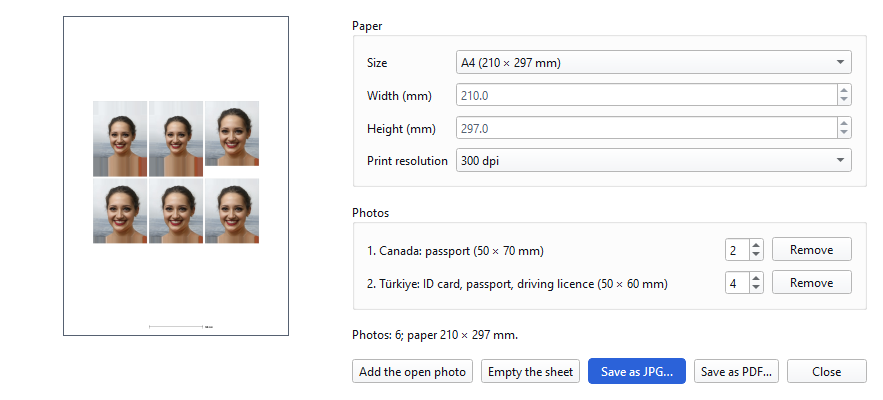
- Pro: with File → Sheet layout… you choose the paper (10 × 15, 13 × 18, A4, Letter, or your own size with sides of 50–500 mm), add several people, and save as JPG or PDF. In the PDF the photos are not compressed a second time and the scale line is exactly 50 mm at any resolution. PDF readers “fit to page” by default: when printing choose Actual size or 100 %, then check the line with a ruler.
The size of the output was verified in the file (pixels, print resolution, PDF geometry); it was not measured on printed paper. Printers and photo printing machines can enlarge or shrink a print, so check the line with a ruler on every print.
Result
If the print was not scaled, the 50 mm line measures 50 mm on the ruler. For preparing the photo to size, see the guide on ID photos to document size.
Other guides
Preparing an ID photo to the size of your document
Open the photo, pick your document's size, check the frame and the guide line; read the warnings and save.
Türkiye: biometric photo 50 × 60 mm (ID card, passport, driving licence)
Pick the Türkiye 50 × 60 mm biometric photo size together with its source's conditions, frame it, print it at 100 % scale and check the size with a ruler.