
Preparing an ID photo to the size of your document
Every document has its own photo size and conditions. PassCrop frames the photo for the size you pick and warns you with a checklist; it does not tell you whether the photo will be accepted, the authority you apply to decides. Also read the conditions for your document on the current page of that authority: the program shows the source of the size and the date it was checked, but rules can change. Everything in this guide is in the free edition.
Steps
- Open the photo. Choose File → Open… (Ctrl+O), or drag the photo onto the window. The file must be JPG or PNG; the photo should be taken from the front, in good light, with the whole face visible. Your original file is not changed, and saving over it is not allowed.
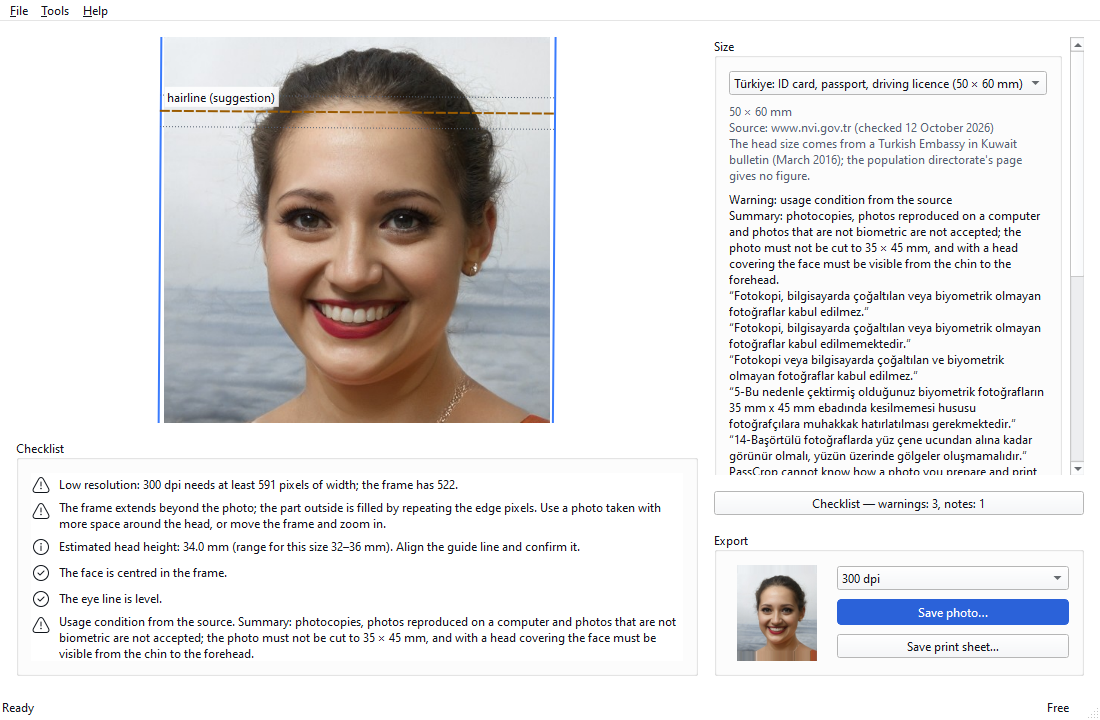
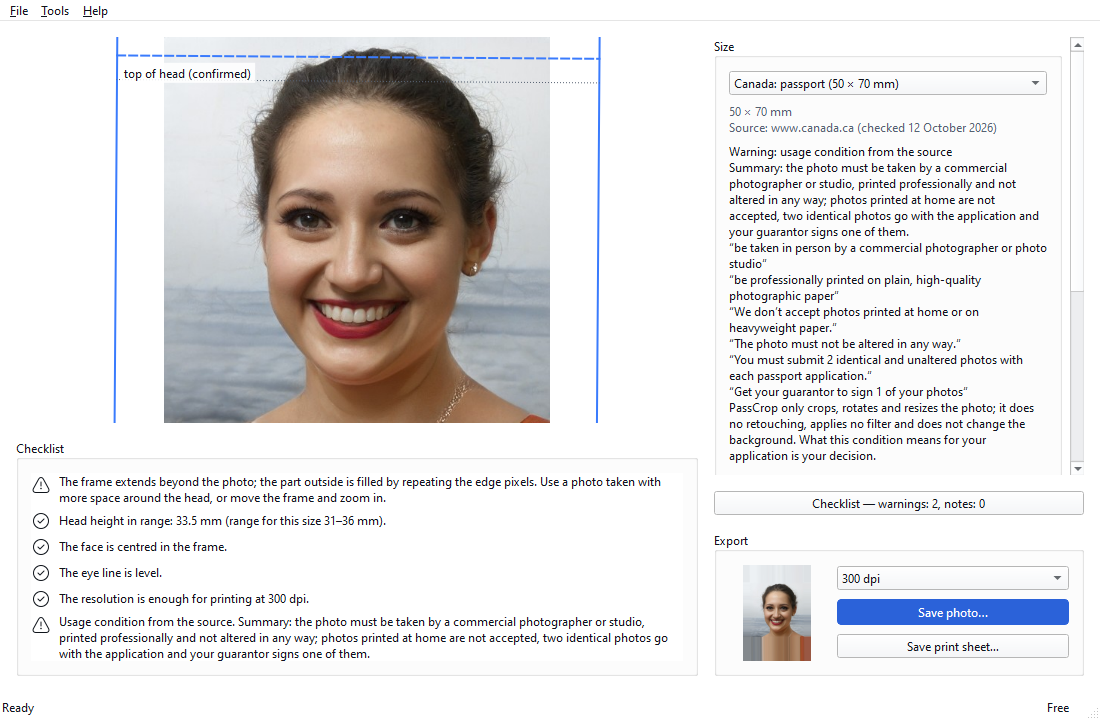
- Pick the size. Choose the size of your document from the list under Size. Below it you see the dimensions, the source and the source's conditions. For the Türkiye, Canada, France, United States and United Kingdom sizes the source's own warning is shown (about taking, printing, reproducing or not altering the photo); what it means for your application is your decision.
- Check the frame. The program places the frame from the eyes. Correct it if needed: drag the frame with the mouse or use the arrow keys; zoom with the mouse wheel, the + and - keys, or the Zoom in / Zoom out buttons; turn with Page Up / Page Down, or the Turn left / Turn right buttons. If no face is found, the frame is placed at the centre of the photo and you place it by hand.
- Set and confirm the guide line. Sizes describe the head height from the chin to a point: some say “top of the head (not the hair)”, some say “where the hair begins”. The top of the skull under the hair is not visible in a photo, so the program cannot make that call; it places the line as a suggestion. Move the line with the mouse or the Up / Down buttons (moving it confirms it); if it is already in place, press Confirm the line.
- Read the checklist and save. The list has rows for the source's usage condition, head height, face centred, eye line, resolution, framing and background. The rows are warnings and information; the background row is an estimate. Save photo… saves the single photo at the exact size, Save print sheet… saves the 10 × 15 cm sheet, both as JPG. If there are warnings they are listed before saving and you choose Save anyway or Go back.
Tips
- iPhone photos are in the HEIC format and do not open: on the phone, shoot in JPEG with Settings → Camera → Formats → Most Compatible, or export the photo as JPG.
- In full-length or distant shots the face is small; the program may not find it and there may not be enough pixels for printing. Use a photo taken closer.
- Until the line is confirmed the head height is not called “in range” or “out of range”; only an estimate is shown.
PassCrop only crops, rotates and resizes the photo; it does not change the background, retouch or apply filters. Lighting, shadows, facial expression, glasses, how recent the photo is and the kind of paper are not checked. It was not tried on photos of children and babies: check the placement and the guide line by hand.
Result
Your photo is framed for the size you picked and saved. Whether it passes is decided by the authority you apply to. For printing, see the guide on printing 10 × 15 cm at 100 % scale.
Other guides
Printing on 10 × 15 cm paper at 100 % scale
Save the print sheet, print it at 100 % scale and check with a ruler that the 50 mm line on the sheet came out unscaled.
Türkiye: biometric photo 50 × 60 mm (ID card, passport, driving licence)
Pick the Türkiye 50 × 60 mm biometric photo size together with its source's conditions, frame it, print it at 100 % scale and check the size with a ruler.