
Open a large CSV file that Excel can't open
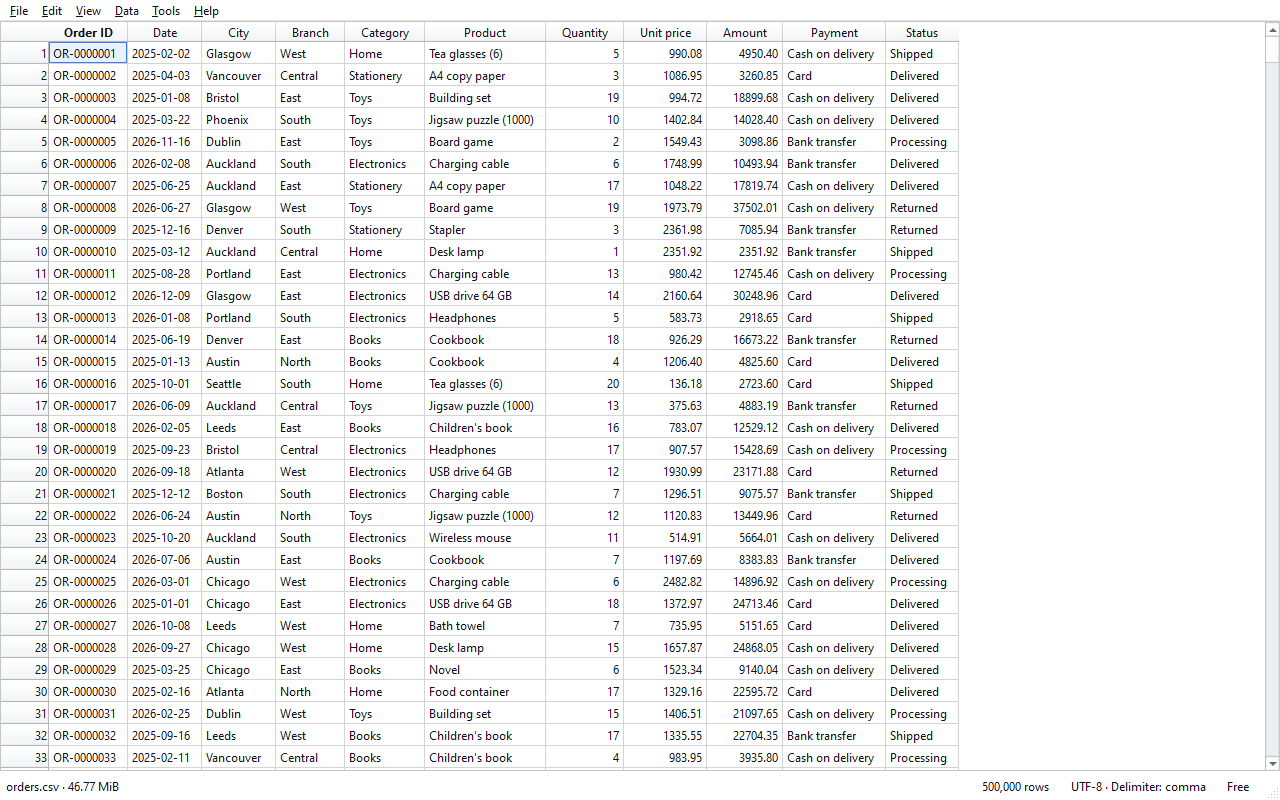
Excel shows at most 1,048,576 rows on a sheet; in a bigger file the remaining rows are not loaded. CsvDrill opens the file read-only without loading it into memory: the first rows appear right away and the rest of the file is scanned in the background. Every step in this guide is in the free edition.
Steps
- Download and install CsvDrill. The installer doesn't ask for administrator rights; the program is installed for your account only. The free edition never expires.
- Open the file. Choose it with File › Open (Ctrl+O), or drag and drop it onto the window. The first rows appear right away; the status bar shows the progress of the scan.
- Check the encoding and the delimiter. CsvDrill guesses the encoding (UTF-8, Windows-1252, Windows-1254) and the delimiter, and shows them on the right of the status bar. If letters look wrong or every row is in one column, fix it under View › Encoding or View › Delimiter.
- Browse and go to a row. Move around with the arrow keys, Page Up / Page Down and Ctrl+Home / Ctrl+End; go to a specific row with Ctrl+G. The row number is the record's real position in the file.
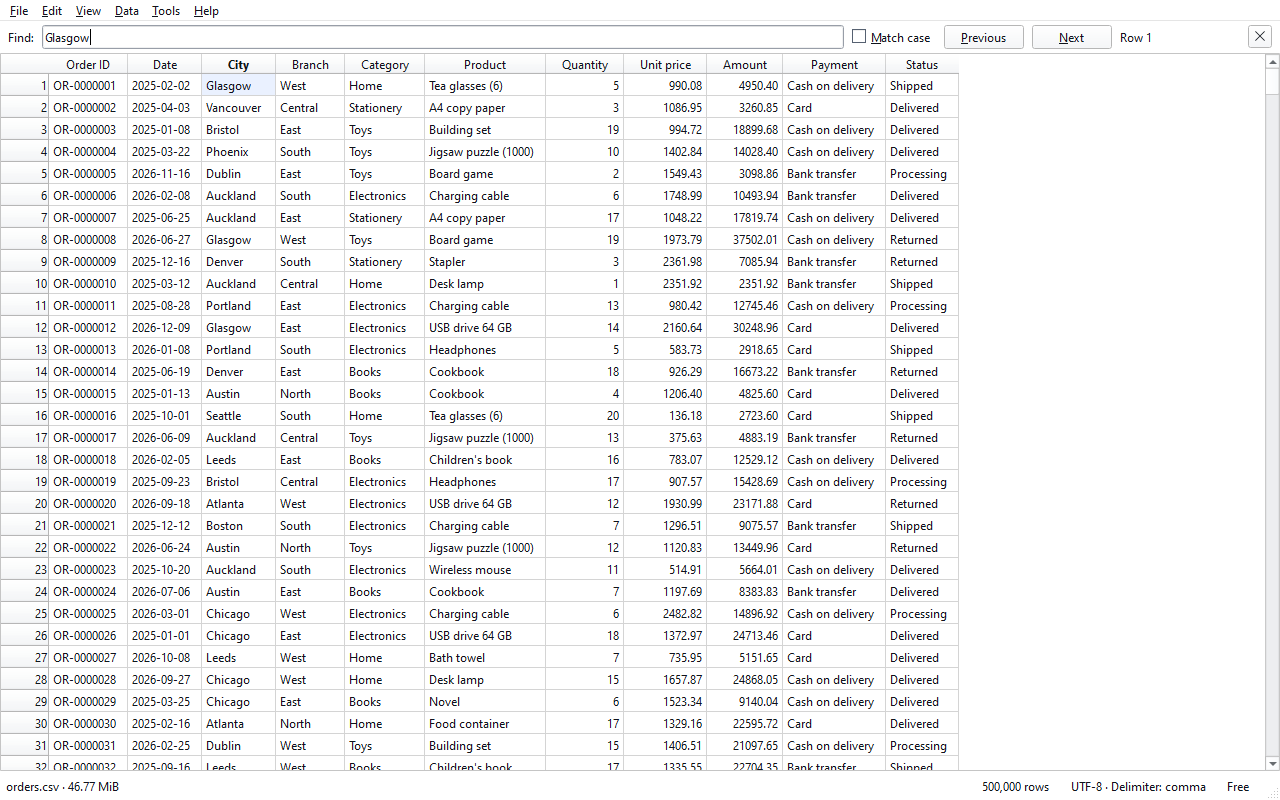
- Search, sort and filter. Search the whole file with Ctrl+F. Click a column header to sort; Ctrl+L opens a single-condition filter. All of this is free.
Tips
- You can browse and search while the file is still being scanned; sorting and filtering wait for the scan to finish.
- Copy selected cells with Ctrl+C and paste them into a spreadsheet (up to 100,000 cells).
- Saving the filtered result as a new CSV or Excel file is in Pro (File › Export).
CsvDrill is a viewer: it opens the file read-only, doesn't edit cells and never writes over the file.
Result
All the rows Excel cut off are in front of you now; your file wasn't changed or sent anywhere. To cut the file into parts that fit in Excel, see the splitting guide.
Other guides
Split a large CSV file into smaller files (Pro)
Split a file into parts that fit in Excel, or into separate files by the value of a column such as city or month; every part keeps the header row.
Fix garbled characters in a CSV file
Garbled letters come from the wrong encoding: choose the right one to read the file correctly, and create a UTF-8 copy or an .xlsx for a lasting fix.