
Fix garbled characters in a CSV file
If accented letters show up as "é", "ü" or question marks, the file is being read with a different encoding from the one it was saved in. Older Excel and accounting programs usually save Windows-1252 (Western European), today's programs UTF-8. Fixing how the file is read is in CsvDrill's free edition; converting the file itself is in Pro.
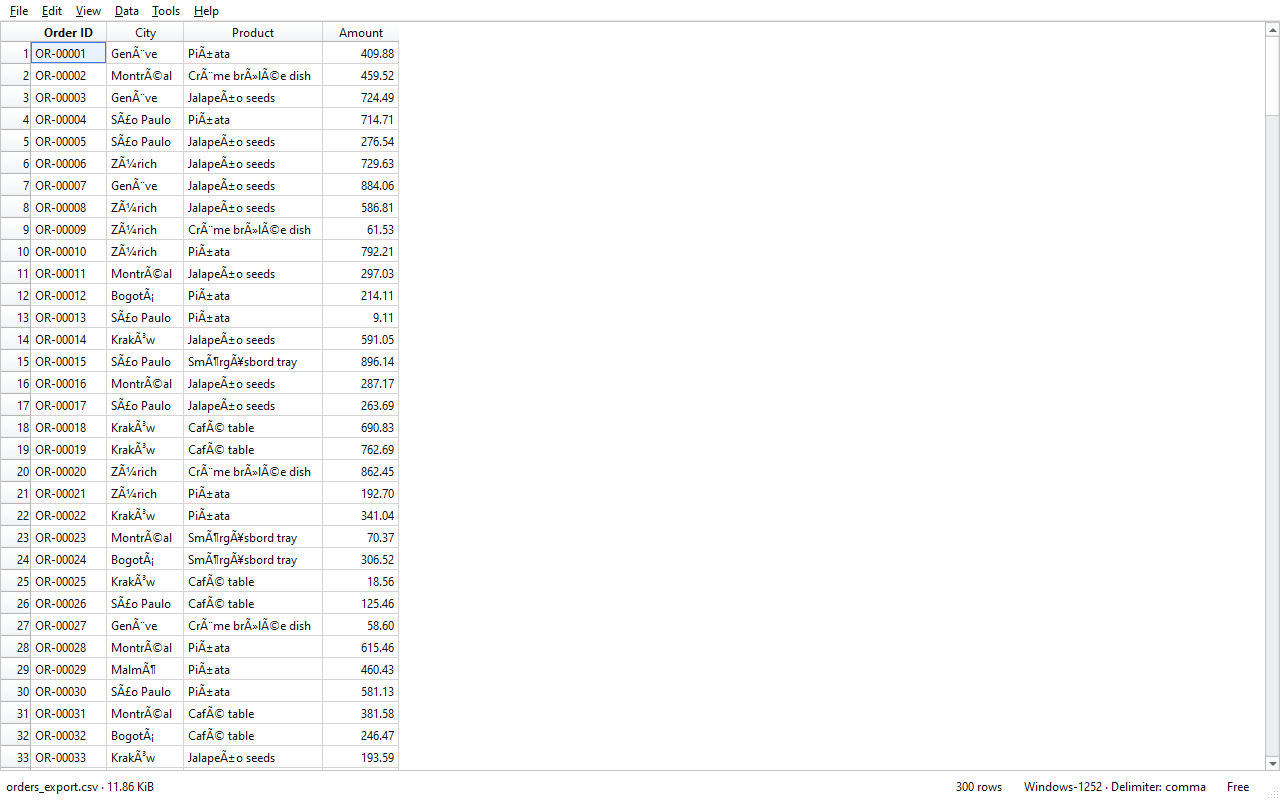
Steps
- Open the file in CsvDrill. CsvDrill guesses the encoding and shows it on the right of the status bar (for example "UTF-8 · Delimiter: comma").
- If letters look wrong, open View › Encoding. Choose from Western European (Windows-1252), UTF-8 and Turkish (Windows-1254); the file reopens with your choice. Detect automatically goes back to CsvDrill's guess.
- Find the right encoding. Try until letters such as é, ü, ñ and ç look right; older files are usually Windows-1252, newer ones UTF-8.
- Lasting fix: convert to UTF-8 (Pro). Create a new UTF-8 file with Tools › Convert; UTF-8 with BOM is recommended for Excel. Your original file isn't changed.
- Or export to Excel (.xlsx) (Pro). Create an .xlsx file with File › Export › Export to Excel; numbers and dates arrive ready to calculate, and results larger than 1,048,576 rows are split into parts.
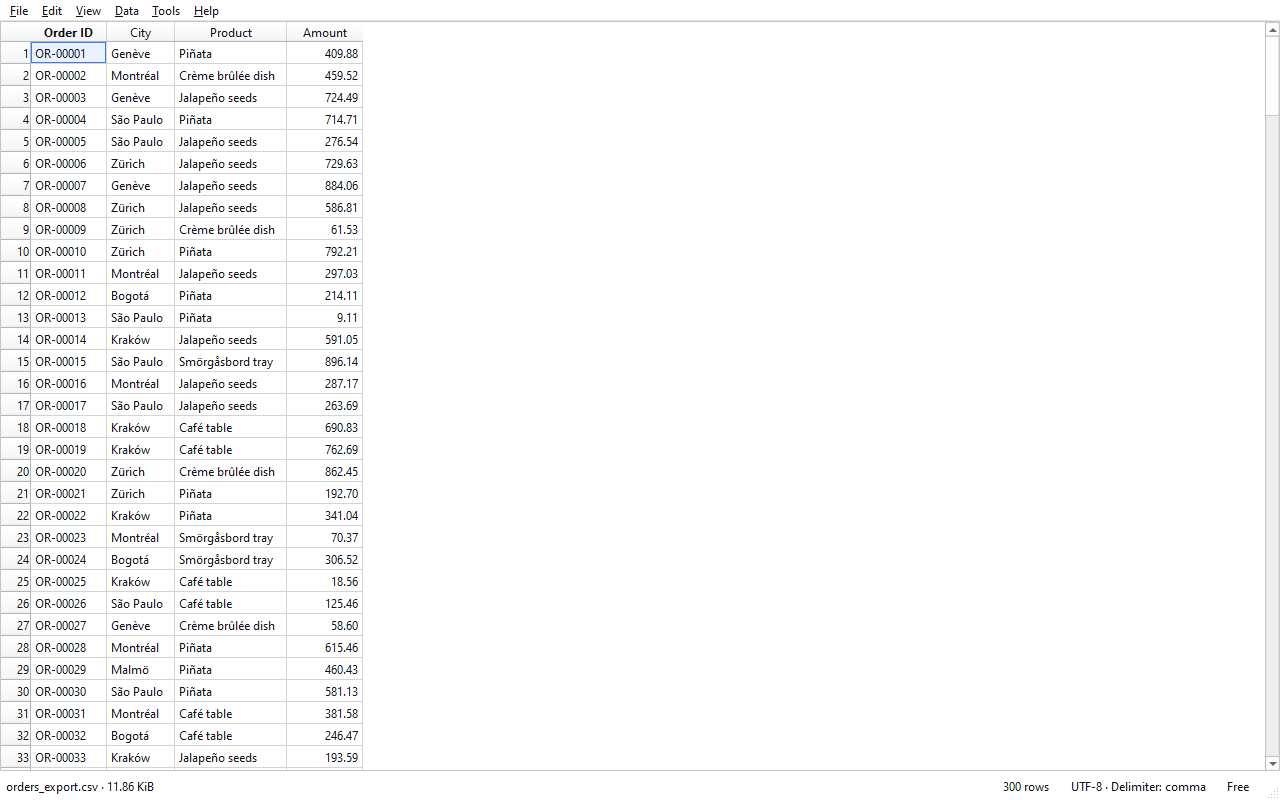
Tips
- If every row is in one column, the problem is the delimiter, not the encoding: choose semicolon, comma or tab under View › Delimiter.
- UTF-16 files are opened after you confirm, as a UTF-8 copy; the original file isn't changed.
- So that Excel recognises accented letters, CsvDrill recommends UTF-8 with BOM when converting.
Choosing an encoding only changes how the file is read; the file itself isn't changed. To see it correctly in other programs too, convert it (Pro).
Result
The letters look right now. If you share the file, creating a UTF-8 copy or an .xlsx saves the recipient the same trouble.
Other guides
Open a large CSV file that Excel can't open
Open a CSV file beyond Excel's 1,048,576-row limit without splitting it, uploading it or changing it.
Split a large CSV file into smaller files (Pro)
Split a file into parts that fit in Excel, or into separate files by the value of a column such as city or month; every part keeps the header row.