
Create a step-by-step guide with screenshots
Instead of describing a task in writing, do it once and let Howlog turn every click into a numbered step with a screenshot. Then tidy the steps and export. HTML and GIF are free; PDF, Word and step text editing are Pro.
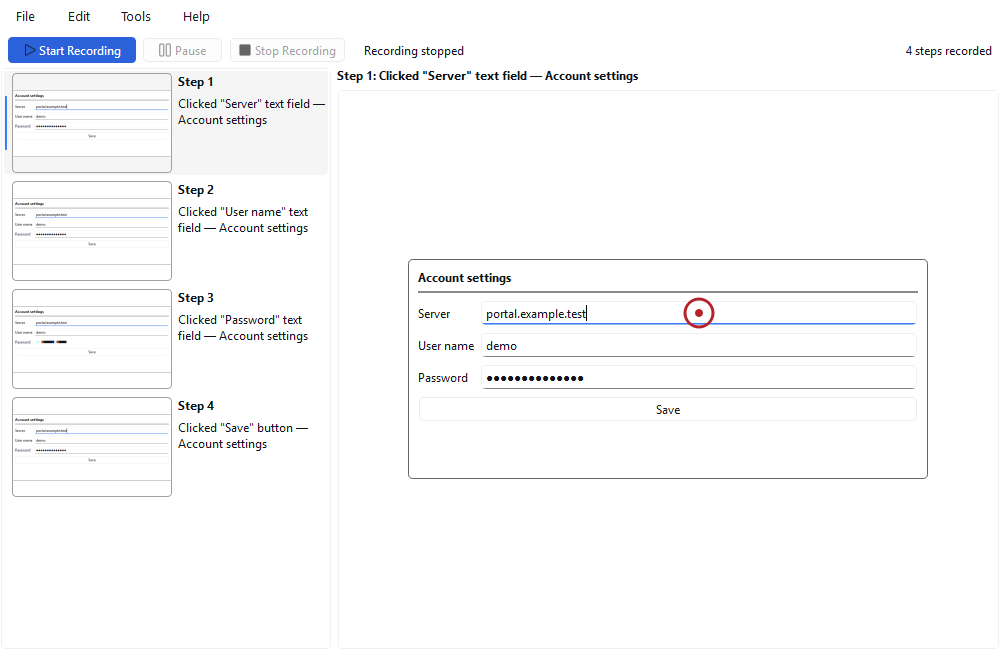
Steps
- Start recording and do the task. Press Start Recording and, after the countdown, do the task you want to explain as usual. Every left click becomes a step.
- Stop and review the steps. Press Stop Recording or Ctrl+Shift+F5. Select a step in the list to see its screenshot on the right; the clicked point is marked with a red ring.
- Delete unnecessary steps. Select the step and press Delete, or choose Edit › Delete; it is also in the right-click menu. Step numbers update by themselves.
- Fix the order; edit the text if you like (Pro). Drag a step and drop it where you want it, or press Alt+Up / Alt+Down. In Pro, double-click a step, replace the automatic text with your own wording and press Enter.
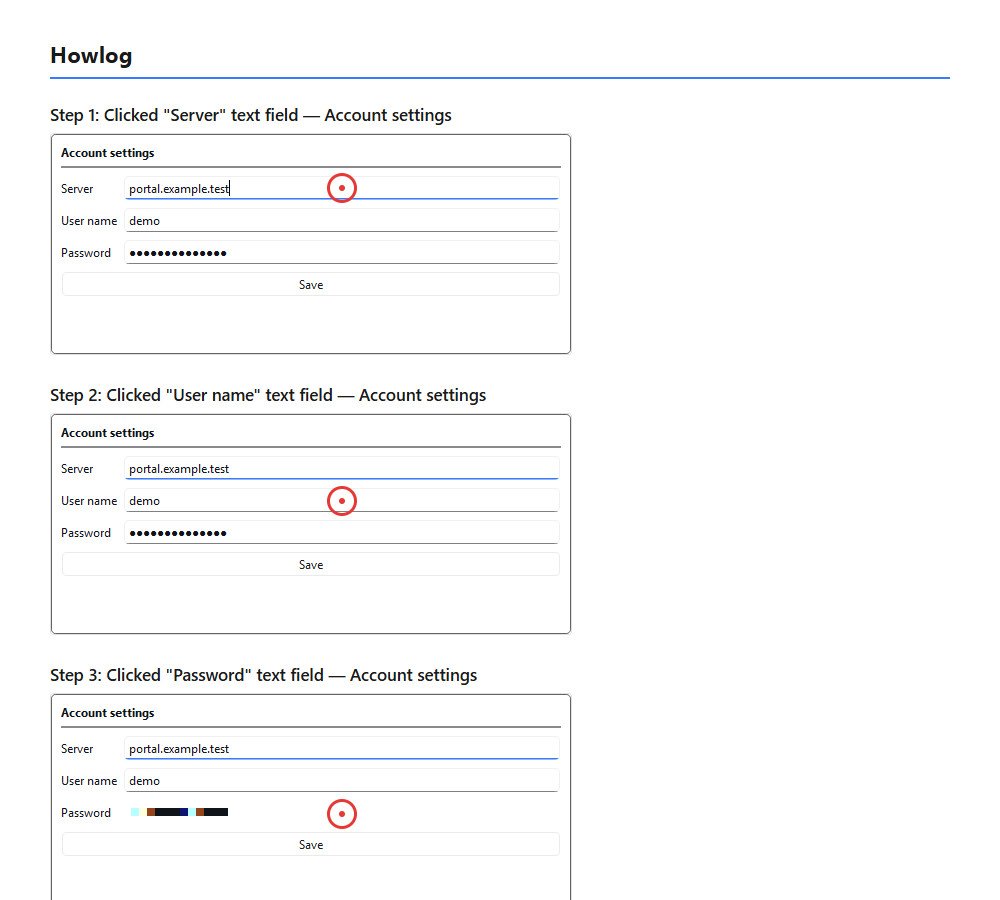
- Export. Choose File › Export. HTML Document (numbered steps in one file) and Animated GIF (shows each step for about 3 seconds) are free; PDF Document and Word Document (DOCX) are Pro.
Tips
- The HTML file opens in any browser; you can send it by email or share it on an internal page.
- Export the steps you want to keep before you start a New Recording (Ctrl+N): the screenshots of the previous recording are deleted.
- Exported files carry the images inside; they open even after you close Howlog.
Without Pro, the PDF and Word options are shown in the list with a Pro label but do not export; HTML and GIF always work.
Result
You now have a step-by-step guide with screenshots; no manual screenshots or typing were needed.
Other guides
Windows Steps Recorder alternative
A tool that records your clicks with screenshots and turns them into a numbered step guide, with no admin rights and no internet needed.
Record the steps to reproduce a bug and send them to support
Reproduce the problem once and let Howlog record the steps with screenshots; attach the result to the support request as HTML or GIF.