
Record the steps to reproduce a bug and send them to support
"It fails when I do this" is often not enough; a support team wants to see the steps you followed. While you reproduce the problem, Howlog records your clicks with screenshots and pixelates clicked password fields automatically. Everything in this guide is in the free edition.
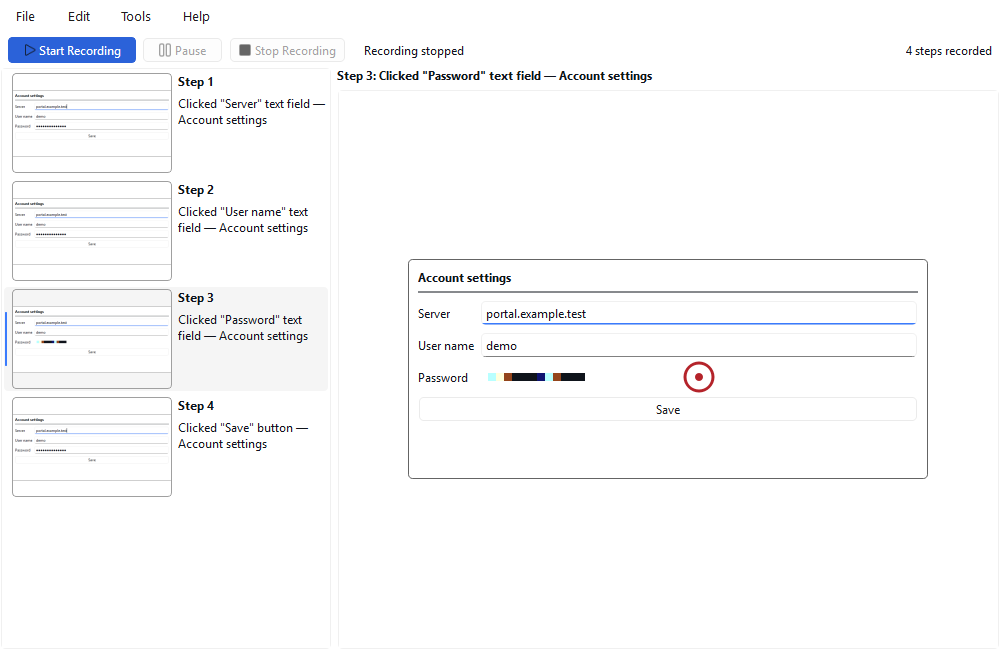
Steps
- Start recording. Get the application where the problem appears ready, press Start Recording and wait for the countdown to finish.
- Reproduce the problem. Do the steps that lead to the error, in order. Every left click becomes a step with a screenshot and the element name. Use Pause (Ctrl+Shift+F6) for anything you do not want recorded.
- Stop the recording. Press Stop Recording or Ctrl+Shift+F5; Howlog comes back with your steps.
- Review the steps. Delete unnecessary steps. Check that clicked password fields are pixelated in the screenshot, and look at every step for any other information visible on screen.
- Export to HTML or GIF and attach it. Choose HTML Document (numbered steps with screenshots) or Animated GIF with File › Export and attach the file to your support request.

Tips
- HTML is a single file that opens in any browser; the GIF is a short animation that shows each step for about 3 seconds.
- Keeping only the steps that matter to the problem makes the support team's job faster.
- If you need help with Howlog itself, Help › Open log folder for support opens the log folder; the log contains no screenshot content, file name or path.
Only clicked password fields are pixelated; other information visible on screen (names, email addresses, addresses and so on) stays as it is. Review every step before you send it.
Result
The support team can see the steps that led to the problem with screenshots, and your password fields are pixelated.
Other guides
Windows Steps Recorder alternative
A tool that records your clicks with screenshots and turns them into a numbered step guide, with no admin rights and no internet needed.
Create a step-by-step guide with screenshots
Do a task once and record it; tidy the steps and share them as HTML or GIF (free), PDF or Word (Pro).