
Windows Steps Recorder alternative
Microsoft has announced that Steps Recorder (psr.exe) is no longer being updated and will be removed in a future release of Windows (November 2023). Howlog offers a similar workflow: it records your left clicks with a screenshot, the window title and the element name, and exports the result as HTML or GIF. Every step in this guide is in the free edition.
Steps
- Download and install Howlog. The installer does not ask for administrator permission; the program installs for your account only. No account and no internet are needed; the free edition has no time limit.
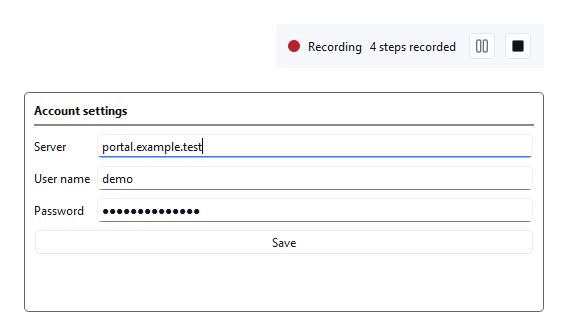
- Start recording. Press Start Recording. After a three-second countdown the Howlog window hides and the recording bar appears in the top-right corner of the screen; you can drag it elsewhere.
- Do the task you want to document. Every left click becomes a step: a screenshot of the window you clicked is taken, and the name of the clicked element and the window title go into the step text. To take a break use Pause on the recording bar or Ctrl+Shift+F6.
- Stop the recording. Press Stop Recording on the bar or Ctrl+Shift+F5; the Howlog window comes back with your steps. You can change the shortcuts in Tools › Settings.
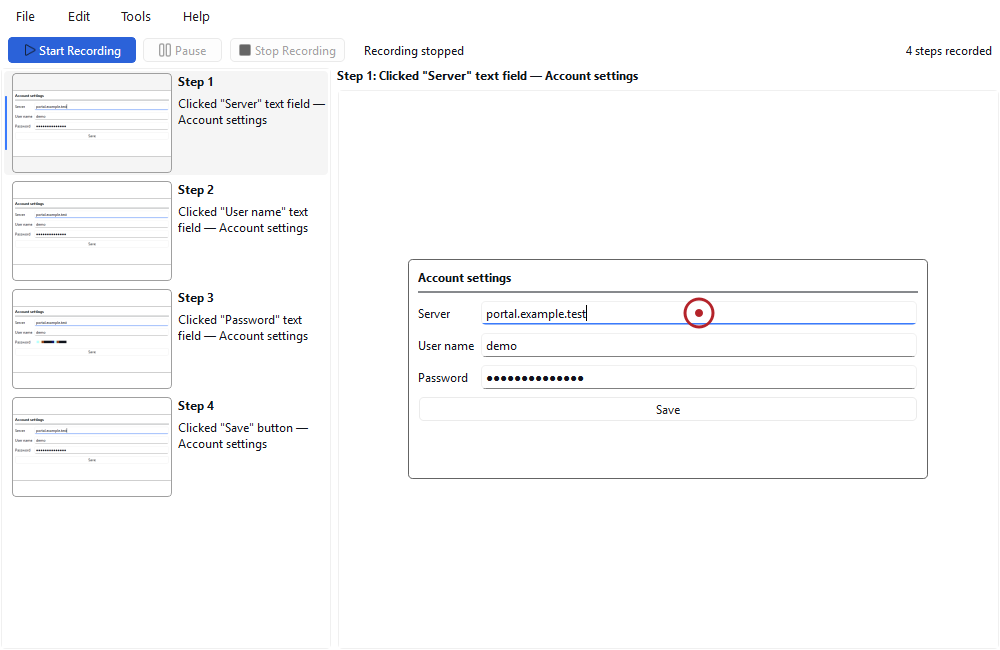
- Review the steps and export. Select a step in the list on the left to see the large screenshot on the right, with the clicked point marked by a red ring. Delete what you do not need, reorder, then save as HTML or GIF with File › Export.
Tips
- Clicks on Howlog's own windows and on the recording bar do not become steps.
- Exported HTML and GIF files carry the screenshots inside; they open even after you close Howlog and can be sent by email.
- Export to PDF and Word (DOCX) and step text editing are Pro; in the free edition these options are shown with a Pro label.
Clicks in a window running as administrator may not be recorded and the element name may not be available; that is a Windows security boundary.
Result
Your clicks are now a numbered guide with screenshots, and nothing left your computer. To prepare a guide from scratch, see the step-by-step guide article.
Other guides
Create a step-by-step guide with screenshots
Do a task once and record it; tidy the steps and share them as HTML or GIF (free), PDF or Word (Pro).
Record the steps to reproduce a bug and send them to support
Reproduce the problem once and let Howlog record the steps with screenshots; attach the result to the support request as HTML or GIF.