
What is using my bandwidth?
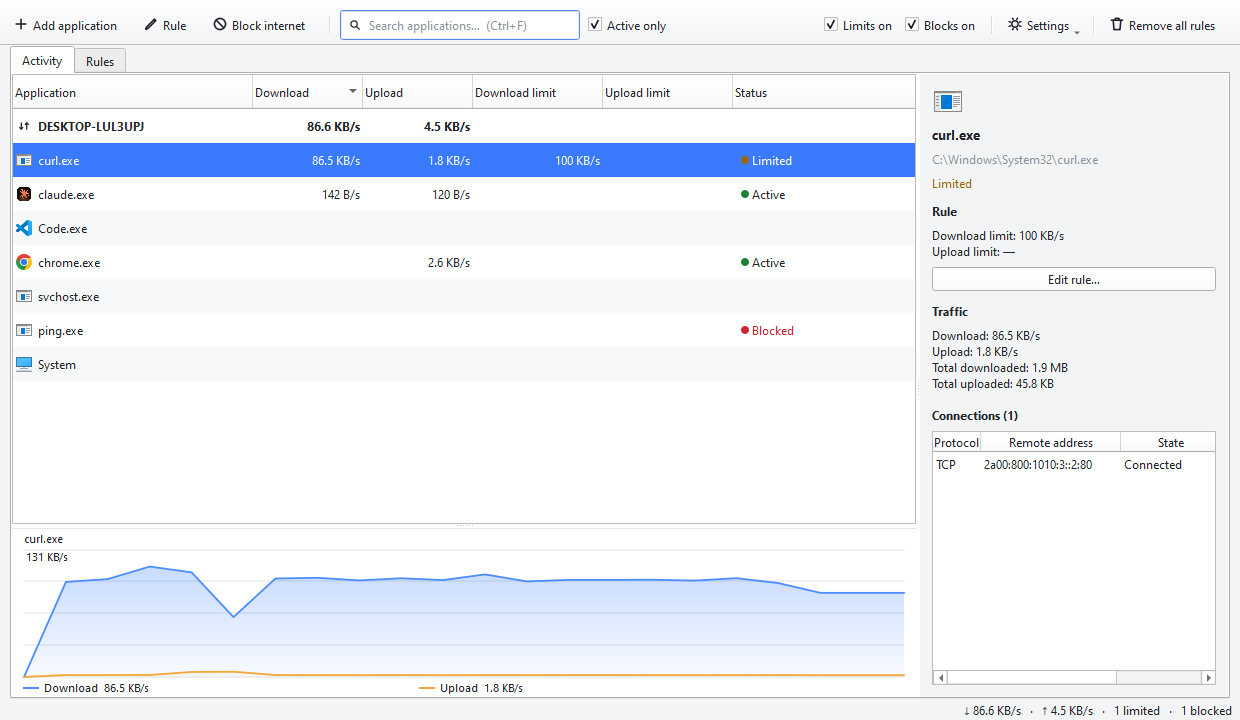
When the internet slows down the first question is: which program is doing it? Task Manager shows overall network usage but not a clear per-program breakdown. Interlimiter's list refreshes every second and shows each program's live speed separately.
Steps
- Sort the list by download speed. Click the “Download” header. The busiest program moves to the top; the bold row at the very top is your computer's total.
- Cut the noise. With “Active only” ticked you see just the programs that moved data in the last 30 seconds. Untick it to see idle programs too.
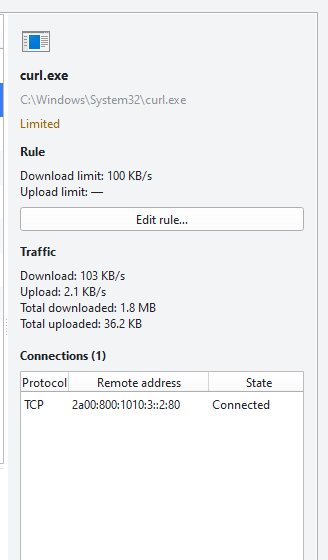
- Select the row you suspect. The info panel on the right shows that program's file path, how much data it has transferred in total and its open connections.
- Look at the connections. You can see which address it is connected to and over which protocol. If a program you do not recognise keeps sending data, you will notice it here.
- Limit or block it if needed. From the same row you can cap its speed or cut its internet access completely.
Tips
- Do not panic when you see “svchost.exe”: it hosts many Windows services. Select the row and the panel lists which services are inside it.
- Even if you close the window the app keeps running in the tray, and the tray tooltip shows the current total speed.
- If you have not set any limit, the driver only watches and never touches your traffic.
Browsers may funnel the traffic of many tabs through a single process. In that case you see one browser row, and no per-application tool can tell which tab is downloading.
Result
You find what is filling your connection within seconds, and limit or block it from the same screen.