
Block a program's internet access
If a program updates itself, phones home or loads ads, you can cut its internet access completely. Interlimiter does this by writing a Windows Firewall rule, so the block holds even when the program is closed and after you restart the computer.
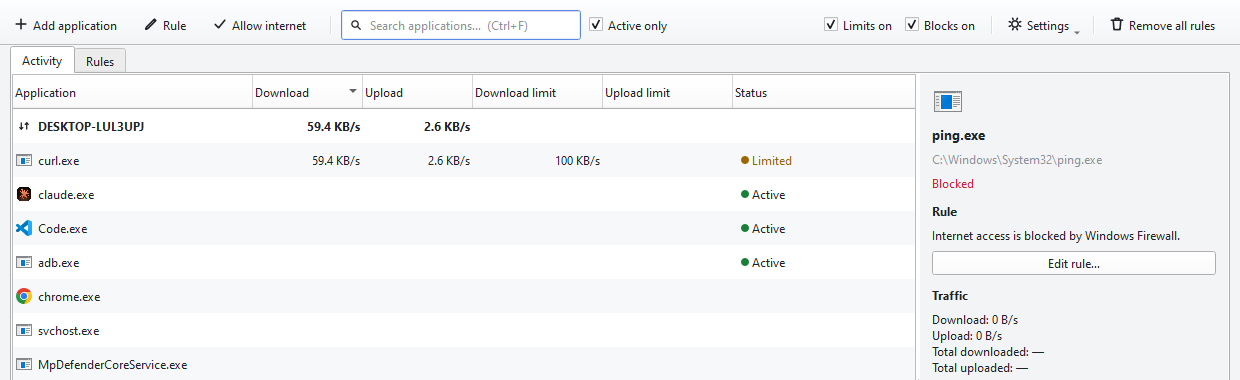
Steps
- Select the program in the list. If the program has never connected yet, use “Add application” in the toolbar to pick its file (Ctrl+N).
- Click “Block internet”. The rule is written immediately; you do not need to restart the program.
- Read the system file warning if it appears. Blocking a file inside the Windows folder can break core services such as DNS and Windows Update. If you are not sure, choose Cancel.
- Check that the status says “Blocked”. The row shows a red dot and the word “Blocked”, and the program's speed drops to zero.
- Use the same button to allow it again. The button turns into “Allow internet” for the selected row. To delete the rule entirely, press Del or use the Rules tab.
Tips
- To lift every block temporarily, untick “Blocks on” in the toolbar. Your rules are not deleted, only paused.
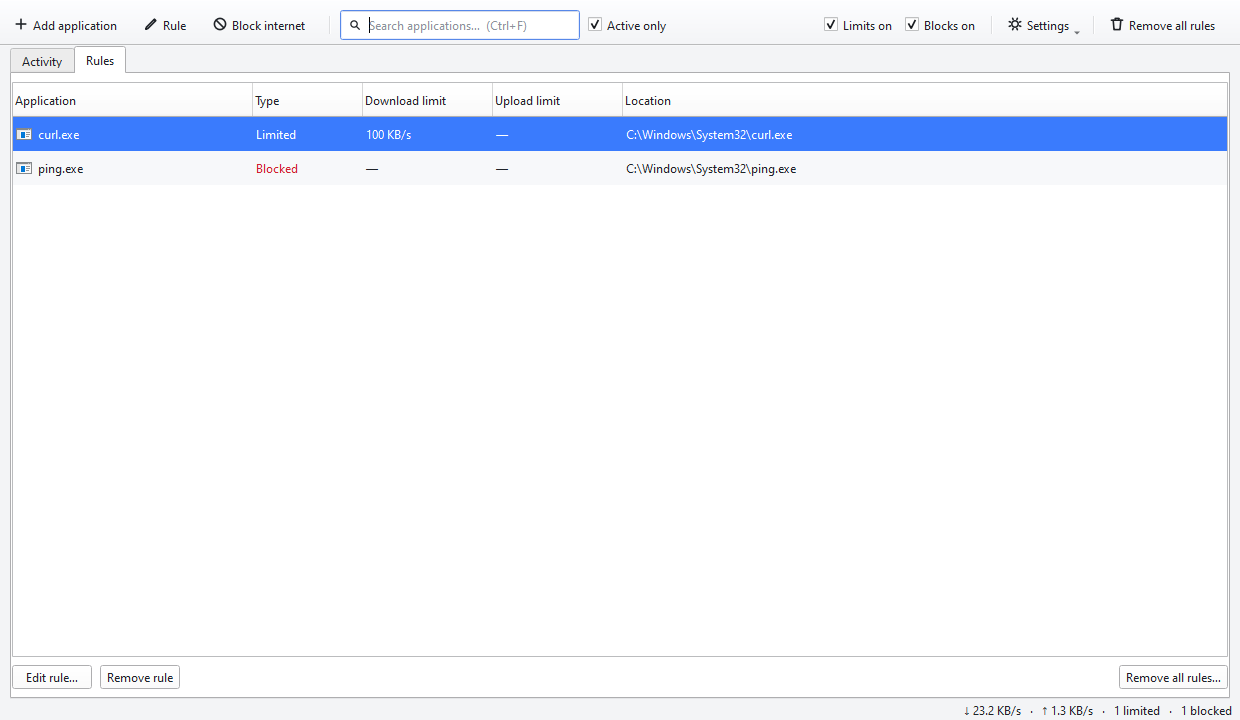
- The Rules tab shows what you applied to which program on a single screen.
- There is no need to both block and limit a program: while it is blocked no traffic passes at all, and your limits stay saved for later.
Do not test the block with the ping command. On Windows the ping packets are sent by the operating system kernel, not by the program itself, so no per-application rule can stop ping. Test with a browser or a downloader instead.
Result
The program keeps running on your computer but cannot reach the internet. Because the rule lives in Windows Firewall, it applies even when Interlimiter is closed.