
Save mobile data on a hotspot
When your computer is on your phone's connection, background updates and sync apps can burn through your data plan in minutes. Interlimiter shows how much data each program uses, so you can cut off the ones you do not need and slow down the rest.
Steps
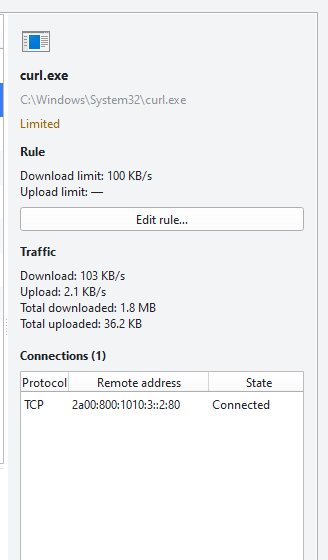
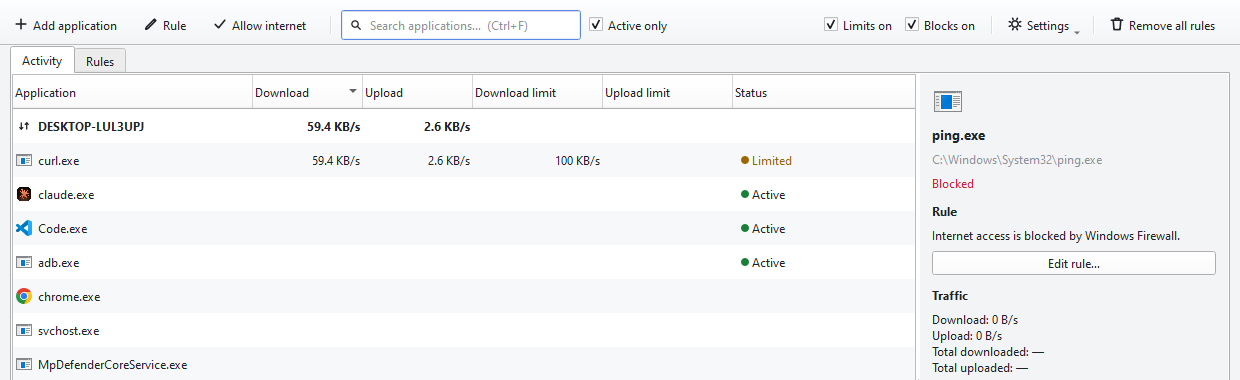
- Open Interlimiter once you are on the hotspot. The list refreshes every second and shows the programs using the internet right now, with their speed.
- See how much each program uses. Select a row and the panel on the right shows that program's total downloaded and uploaded data. Click the “Download” header to bring the heaviest user to the top.
- Cut off what you do not need right now. Select updaters, game launchers and cloud sync apps and click “Block internet”. The block holds even when the program is closed.
- Slow down the programs you keep using. Put a low download limit on programs such as your browser. Pages still load, but one large download cannot finish off your data plan unnoticed.
- Remove the rules when you are back on Wi-Fi. Blocks and limits stay until you remove them. Delete them one by one, or undo everything with “Remove all rules…”; to only pause them, untick “Blocks on” and “Limits on”.
Tips
- Do not block svchost.exe: it hosts many Windows services including DNS, and blocking it cuts off the whole computer's internet. Interlimiter warns you about system files like this.
- To defer Windows updates, use Windows' own setting: in Settings → Network & internet, open this network's properties and turn on “Metered connection”.
- Closing the window keeps Interlimiter running in the tray; hover over the tray icon to see the current total speed.
Interlimiter shows the data used but does not cut programs off automatically when a limit is reached; you need to keep an eye on your plan yourself. The amount your carrier counts can differ slightly because of connection headers and retransmissions.
Result
Your data goes only to the programs you actually use. Back on Wi-Fi, you remove the rules in one step.
Other guides
Limit a program's internet speed
Cap the download and upload speed of one program and leave everything else at full speed.
Block a program's internet access
Stop a program from going online with one click, and allow it again whenever you want.
What is using my bandwidth?
See which program is filling your connection in real time and inspect the addresses it is talking to.
Stop background downloads lagging your games
When a game update or cloud sync fills your connection, your game lags. Cap the download instead of stopping it.