
Stop background downloads lagging your games
When your game starts lagging, the cause is often not the game but a download filling the line in the background: a game update, a file in the browser or cloud sync. You do not have to stop the download. Cap that program's speed below your line speed and the download keeps going while the game gets room.
Steps
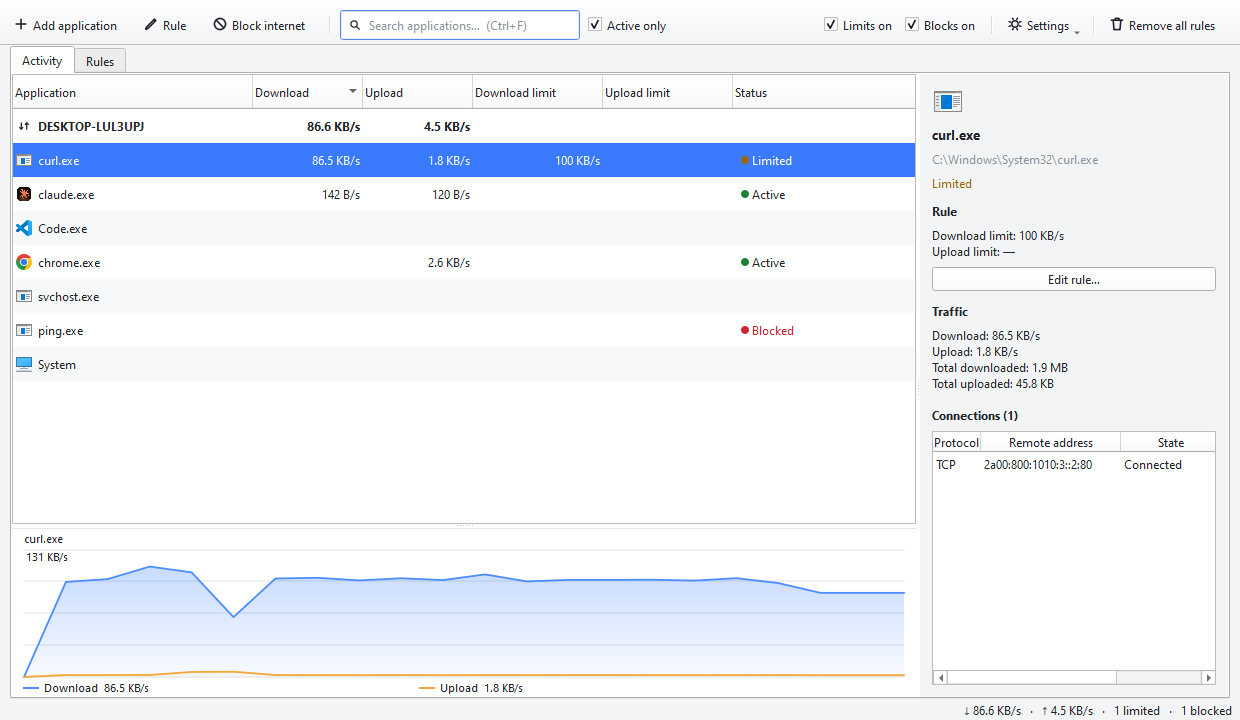
- Start Interlimiter before you launch the game. It asks for administrator rights because it loads a network driver. Closing the window sends it to the tray; your rules keep working.
- Find the program filling the line. Click the “Download” header and the busiest program moves to the top. The bold row at the very top is your computer's total. It is usually a game launcher, a browser or a cloud sync app.
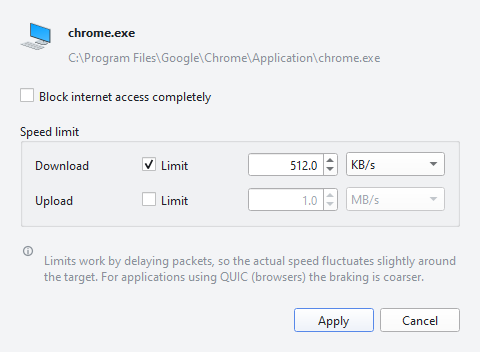
- Open the rule window. Double-click the row, or select it and press Enter.
- Set a download limit below your line speed. On a 50 Mbit/s line, for example, give the download 20 Mbit/s and the rest is left for the game and voice chat. Choose Mbit/s as the unit to compare it directly with your line speed.
- Click Apply and go back to your game. Within a few seconds the download drops to the speed you set and keeps running. When you finish playing, select the row and press Del to remove the limit.
Tips
- If you use voice chat or stream, check the upload side too: lag also rises when a backup app fills your upload. You can tick the upload limit in the same window.
- Do not put a limit on the game itself. A limited program's packets are held back briefly, which adds delay to that program; other programs are not affected.
- To pause every limit, untick “Limits on” in the toolbar. Your rules are not deleted, only paused.
Interlimiter frees up room on your line; it does not change the distance to the game server. If latency is high even when the line is idle, the cause is the server, your Wi-Fi or your provider. Speed limits were measured on connections up to about 120 Mbit/s.
Result
The download keeps going and your game uses the rest of the line. When you are done, remove the limit with one key.
Other guides
Limit a program's internet speed
Cap the download and upload speed of one program and leave everything else at full speed.
Block a program's internet access
Stop a program from going online with one click, and allow it again whenever you want.
What is using my bandwidth?
See which program is filling your connection in real time and inspect the addresses it is talking to.
Save mobile data on a hotspot
When you tether to your phone, find the programs using data in the background and block or slow them down.